
When shopping for an order, by default, items display in the Shopping list sorted by their category. Shoppers can recategorize items as well as sort the Shopping list by other options (Low-stock items first, Perishable items last, etc) to create a more efficient shopping experience.
Recategorizing an Item
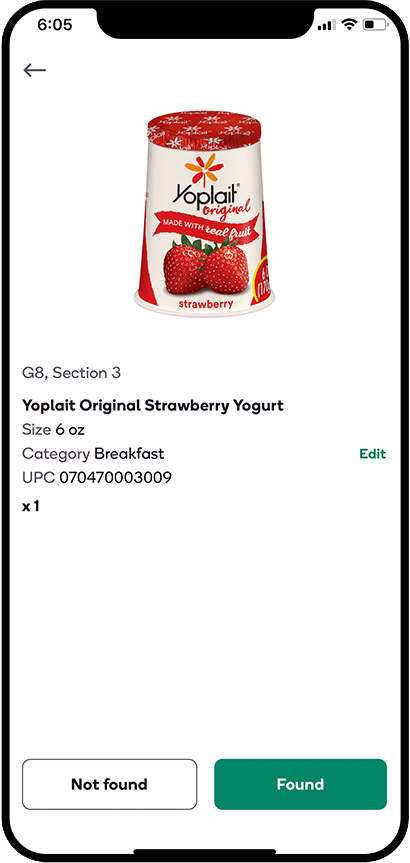
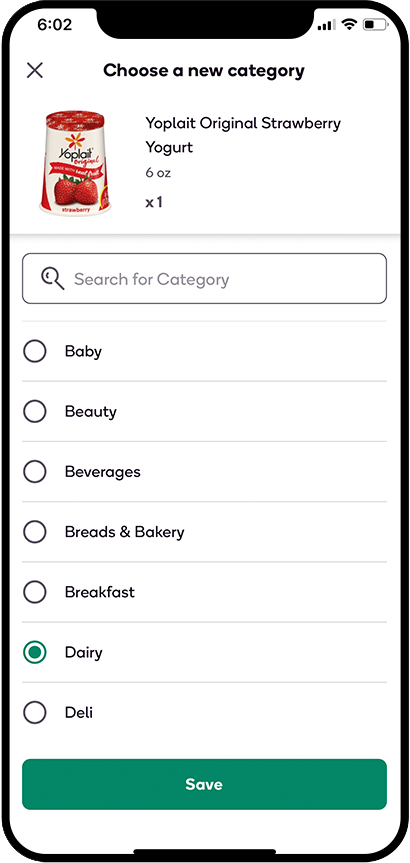
Shoppers are able to edit the category an item falls under on the Shopping List, enabling them to have the freedom to plan their order according to their preferences, shopping process, and the store they're shopping in.
How to recategorize an item for an order:
- Tap Edit next to the category on the Item Details screen.
- Select the category you want to assign the item to.
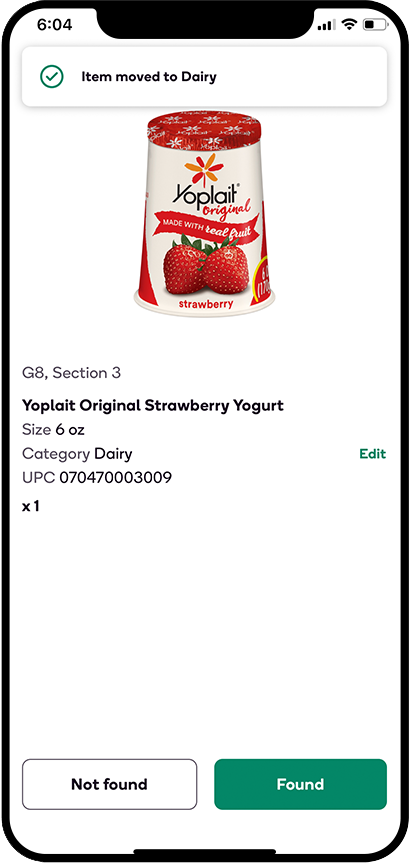
- Tap Save. The change will be applied and the item will display under the selected category.
*Note: Recategorizing only applies to the current order and changes will not be saved for future orders.
Sorting the Shopping list
There are a few options to help you sort the Shopping list for a more efficient shopping experience.
- Tap the Sort dropdown from the top of your Shopping list to select how you want to sort it (Category, Low-stock items first, etc).*
- When sorting by Category, sorting icons (=) will display to the right of each category. Place and hold your finger on the icon for a category you wish to move and drag it to where you’d like it to appear in the list.
- After you have organized the Shopping list to your liking, tap Save to apply the changes.
*Note: Not all stores have Aisle Location or Shortest in-store path sort functionality.

